

Smartlead MCP Server: Connect Smartlead to Claude (2026 Guide)

By Kushal Magar · October 18, 2026 · 12 min read
Key Takeaway
The Smartlead MCP server connects Claude Desktop to your Smartlead account over SSE at https://mcp.smartlead.ai/sse, launched through npx mcp-remote with your API key. It handles campaign reporting, deliverability checks, and lead uploads from chat. Every tool call counts against Smartlead's API limits (60 requests per minute on Standard), and write tools can pause campaigns or change lead status, so keep approval prompts on. Smartlead does not enrich or verify new leads, so run SyncGTM's MCP first to find and verify emails before anything reaches a sequence.
The Smartlead MCP server lets Claude read and run your Smartlead campaigns from chat. You can ask for a weekly reply-rate report, flag a mailbox with high bounces, or upload a lead list without opening the dashboard.
Setup takes about five minutes, but the docs are scattered. Smartlead's help center, its own blog, and community servers each describe a different install path.
This guide gives you the working setup, the actions you get, copy-paste prompts, the real rate limits, and the guardrails to add before Claude touches a live campaign. It ends with how SyncGTM enriches and verifies leads before they ever reach Smartlead.
TL;DR
- What it is:Smartlead's official MCP server exposes campaigns, leads, email accounts, deliverability, analytics, and webhooks to Claude.
- Setup: Claude Desktop config →
npx -y mcp-remote https://mcp.smartlead.ai/sse?user_api_key=KEY. Needs Node.js and a paid Smartlead plan with API access. - Clients: Smartlead documents Claude Desktop only, over SSE. Claude Web support is listed as planned.
- Rate limits: 60 requests per minute on Standard, 120 on Pro. Three analytics endpoints cap at 10 per minute each.
- Biggest risk: write tools (pause, status change, lead upload) run on live data. Keep approval prompts on.
- The gap: Smartlead sends to whatever you upload. Use SyncGTM's email finder MCP to find and verify emails first.
What Is the Smartlead MCP Server?
The Smartlead MCP server is a bridge between Claude and the Smartlead API, built on the Model Context Protocol. Claude sees Smartlead actions as tools and calls them when your prompt needs live data.
Smartlead's own blog says the server exposes 116+ tools across six areas. Those are campaign management, lead lifecycle, email accounts, deliverability diagnostics, analytics, and webhook automation.
Every call is a real API request against your account. Nothing is cached, so results are current, and every call counts against your rate limit.
If you are still deciding whether Smartlead is the right sending tool, read our Smartlead review first.
Official vs Community Smartlead MCP Servers
Three routes show up when you search for a Smartlead MCP. The official server is the one to use unless you need a feature it lacks.
| Option | How it runs | Status | Best for |
|---|---|---|---|
| Official Smartlead MCP | Remote SSE at mcp.smartlead.ai, launched via mcp-remote | Maintained by Smartlead; 116+ tools claimed | Most teams on Claude Desktop |
| “Smartlead Simplified” (community) | Local npm package smartlead-mcp-server over stdio | 20 tools; last npm release April 2025 | n8n users who want a local SSE endpoint |
| Hosted MCP platforms | Third-party generated server URL | Paid platforms; extra vendor in the data path | Teams needing read-only filtering or expiring tokens |
One trap: Smartlead's newer setup blog references an @smartlead/mcp-serverpackage. When we checked the public npm registry on October 18, 2026, that name returned no package, so this guide uses the help center's mcp-remote route.
How to Connect Smartlead to Claude
The official Smartlead MCP connects in five steps. You need a paid Smartlead plan with API access, Claude Desktop, and Node.js LTS.
Step 1: Get your Smartlead API key
In Smartlead, open Settings → API Keys and generate or copy a key. This key grants full API access, so never paste it into a shared doc or chat.
Step 2: Open the Claude Desktop config
In Claude Desktop, go to Settings → Developer → Edit Config. That opens claude_desktop_config.json.
On Mac it lives at ~/Library/Application Support/Claude/. On Windows it lives at %APPDATA%\Claude\.
Step 3: Add the Smartlead server block
Add this entry under mcpServers, per Smartlead's MCP help article. Keep any servers already in the file.
{
  "mcpServers": {
    "smartlead": {
      "command": "npx",
      "args": [
        "-y",
        "mcp-remote",
        "https://mcp.smartlead.ai/sse?user_api_key=YOUR_API_KEY"
      ]
    }
  }
}
The mcp-remote package turns the remote SSE endpoint into a local server Claude Desktop can launch. Check the key in a plain-text editor first, because a trailing space breaks authentication.
Step 4: Restart Claude Desktop
Fully quit Claude Desktop, not just the window, then reopen it. The first launch can take 10 to 20 seconds while npx downloads mcp-remote.
Step 5: Enable the tools and test
Open a new chat, click the tools icon, and make sure Smartlead is toggled on. Start with a read-only prompt so nothing changes on a live campaign.
First prompt
“List my active Smartlead campaigns with sent, reply, and bounce counts for the last 7 days.”
A real call shows a tool-use block in the reply. A table with no tool block means Claude answered from memory, so ask it to use the Smartlead tools.
Optional: Claude Code
Smartlead only documents Claude Desktop. Claude Code still accepts SSE servers through its MCP command, so this pattern should work, though Smartlead does not support it officially.
claude mcp add --transport sse smartlead \
  "https://mcp.smartlead.ai/sse?user_api_key=YOUR_API_KEY"
Smartlead MCP Campaign and Lead Actions
The Smartlead MCP groups its tools into six areas. Read actions are safe to run freely, while write actions change live data.
| Area | What Claude can do | Read or write |
|---|---|---|
| Campaign management | List campaigns, get status, pause or start, edit settings and sequences | Both |
| Lead lifecycle | Fetch lead data, add leads to campaigns, update lead status, pause a lead's sequence | Both |
| Email accounts | Check connected mailboxes and warmup status | Mostly read |
| Deliverability | Spot bounce spikes, disconnected accounts, and domain health issues | Read |
| Analytics | Sends, opens, replies, and step-level performance by date range | Read |
| Webhooks | Set up event triggers for replies and status changes | Write |
Smartlead names tools like get_campaign_status, fetch_lead_data, and check_deliverability. Ask Claude “list every Smartlead tool you can call” to see the exact set in your account.
Example Prompts for Reporting and Lead Uploads
Good Smartlead MCP prompts name the time window, the metric, and the output format. Here are prompts grouped by job.
Reporting
- “Summarize my top 5 campaigns by reply rate for the last 30 days as a table with sent, replies, and interested replies.”
- “Which sequence step gets the most replies in campaign [name]? Show reply rate per step.”
- “Write a Monday report: sends, replies, interested leads, and the biggest week-over-week drop.”
Deliverability checks
- “Show any mailbox with a bounce rate above 5% in the last 7 days.”
- “List disconnected email accounts and any account where warmup has stopped.”
Pair these with a warmup plan, since MCP only reports problems. Our email domain warmup guide covers the fix side.
Lead uploads
- “Add these 50 leads to campaign [name]. Map first name, company, and title to custom fields. Show me the payload before you upload.”
- “Find leads who replied in the last 7 days but are still active in a sequence, then list them. Do not change anything yet.”
Note the “show me first” wording. It turns a write action into a two-step review, which matters more than any other prompt habit.
Smartlead MCP Rate Limits
The Smartlead MCP does not have its own quota; it inherits your API limits. Smartlead's rate-limit guide sets them per API key across all endpoints.
| Tier | Per minute | Per hour | Burst |
|---|---|---|---|
| Standard | 60 | 1,000 | 10 per second |
| Pro | 120 | 3,000 | 20 per second |
| Enterprise | Custom | Custom | Custom |
Three endpoints add a stricter cap of 10 requests per 60 seconds each: campaign leads statistics, all-leads activities, and domain-wise mailbox health. A prompt like “show lead stats for all 15 campaigns” will hit that wall after 10 calls.
A 429 error on the plan limit returns a Retry-After value. The endpoint-specific 429 does not, so wait a full 60 seconds.
For lead uploads, the current guide allows 400 leads per request, while an older reference page says 350. Ask Claude to batch at 350 and you stay inside both.
Practical rule: one campaign report is a handful of calls, but “audit every campaign” can be 100+. Scope prompts to a few campaigns at a time.
Safety Guardrails for Write Actions
The Smartlead MCP can pause campaigns, change lead status, edit sequences, and upload leads. Smartlead's docs give no confirmation guidance, so set these guardrails yourself.
- Keep approval prompts on.Claude Desktop asks before each tool call. Choose “Allow once” for write tools and save “Allow always” for read tools only.
- Deny destructive tools in Claude Code. Add delete and status tools to the
permissions.denylist in settings, using themcp__smartlead__<tool_name>pattern. - Test on a sandbox campaign. Create a paused campaign with test leads, and run every new write prompt there first.
- Ask for a dry run.End write prompts with “show me the changes before you make them.”
- Protect the key. The key sits in the URL query string, so it can land in logs. Never share your config file, and regenerate the key if it leaks.
- Pause before editing. Pause a live campaign before Claude changes its sequence, then resume it after review.
Troubleshooting Common Errors
| Symptom | Likely cause | Fix |
|---|---|---|
| No Smartlead tools in Claude | Node.js missing or JSON syntax error | Run node -v, validate the JSON, fully restart |
| 401 or auth failure | Wrong key or trailing space | Re-copy the key into a plain-text editor first |
| Connection hangs | Firewall blocks mcp.smartlead.ai | Allow outbound HTTPS to the domain |
| 429 / endpoint limit errors | Prompt fans out into too many calls | Scope to fewer campaigns, wait 60 seconds |
| Tools show but are greyed out | Smartlead toggled off for this chat | Enable it in the chat's tools menu |
For other local-server issues, Anthropic's Claude Desktop MCP guide explains where logs live.
Limitations of the Smartlead MCP
The Smartlead MCP is strong at operating campaigns. It is not built to decide who goes into them.
- No lead sourcing. It cannot search for new companies or people by ICP.
- No email finding or verification. It uploads whatever addresses you give it, valid or not.
- Desktop only, SSE only. SSE is deprecated in newer MCP spec versions, and Claude Web support is still listed as planned.
- Tight analytics caps. The 10-per-minute endpoints make large reports slow.
- Broad key scope. One API key grants full account access, with no read-only option documented.
The second gap costs the most. Bad emails raise bounce rates, and high bounces damage the sender reputation Smartlead's warmup works to build.
A Better Way: Enrich With SyncGTM Before Smartlead
The better workflow runs two MCPs in the same Claude chat. SyncGTM's MCP builds and verifies the list, then the Smartlead MCP sends to it.
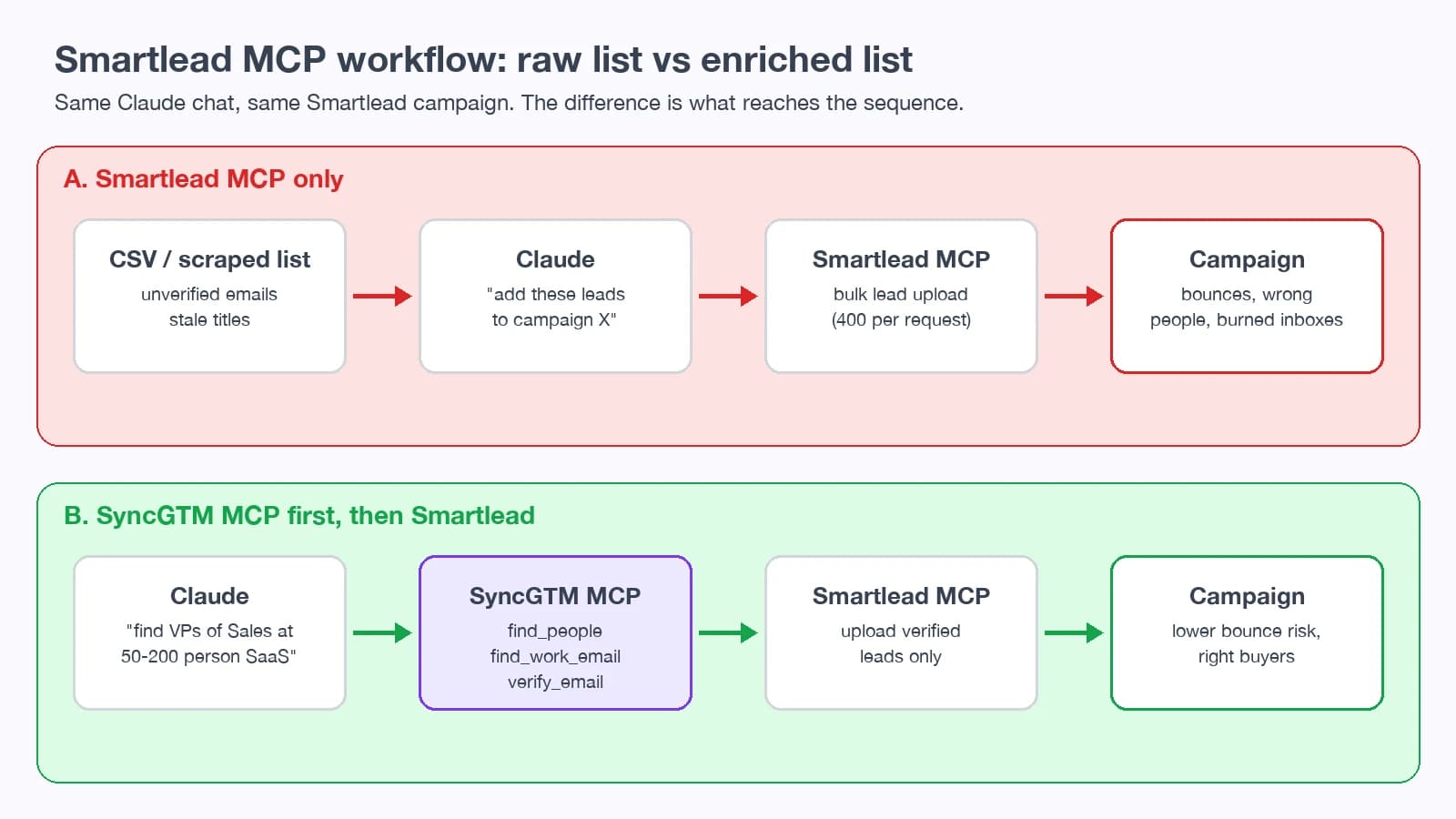
How the workflow runs
- Find people. Claude calls
find_peoplewith your ICP filters, such as title, company size, and country. Cost: 0.2 credits per person returned. - Find work emails. find_work_email tries 50+ providers in a waterfall until one matches. Cost: 1 credit, and misses are not billed.
- Verify every email. verify_email checks deliverability across multiple verifiers. Cost: 0.1 credits.
- Add a reason to reach out. Optional signals like job changes (2 credits) or company firmographics (2 credits) feed personalization fields.
- Upload to Smartlead. Claude passes only verified leads to the Smartlead MCP in batches of 350, or the SyncGTM Smartlead integration pushes them into a campaign directly.
What 100 verified leads cost
| Step | SyncGTM tool | Credits for 100 people |
|---|---|---|
| Source contacts | find_people | 20 |
| Find emails | find_work_email | Up to 100 (misses free) |
| Verify emails | verify_email | Up to 10 |
| Total | — | Up to 130 credits |
See SyncGTM pricing for what a credit costs on each plan. Run check_credits in Claude before a big list.
Connect SyncGTM's MCP
Unlike Smartlead's setup, SyncGTM uses a remote HTTP server with OAuth, so there is no API key in a config file. In claude.ai, open Settings → Connectors → Add custom connector and paste https://api.syncgtm.com/mcp.
# Claude Code
claude mcp add --transport http syncgtm https://api.syncgtm.com/mcp
Our lead generation with Claude guide walks through the full setup. For the native, no-chat route, see the SyncGTM + Smartlead integration.
Combined prompt
“Use SyncGTM to find 50 Heads of Sales at US SaaS companies with 51–200 employees. Find and verify their work emails, drop anything not valid, then show me the list. After I approve, add the valid leads to my Smartlead campaign ‘Q4 SaaS Outbound’.”
Pros and Cons
Smartlead MCP — Pros
- Official, maintained server with 116+ tools claimed
- Fast campaign and deliverability reporting from chat
- Live data on every call, no stale cache
- Covers write actions, so Claude can operate campaigns
- Five-minute setup with one config block
Smartlead MCP — Cons
- Claude Desktop and SSE only, per Smartlead's docs
- API key passed in the URL, with full account scope
- No lead sourcing, email finding, or verification
- 10-per-minute caps on key analytics endpoints
- Conflicting install instructions across Smartlead's docs
Conclusion
The Smartlead MCP server is the fastest way to run Smartlead reporting and campaign operations from Claude. Use the official mcp-remote setup, scope prompts to stay under 60 calls a minute, and keep approval prompts on for every write tool.
It does not choose or clean your leads. Put SyncGTM's MCP in front of it, and every lead that reaches a sequence has a found, verified email.
Comparing sending tools too? Our Smartlead alternatives roundup and top GTM MCPs for Claude Code cover the rest of the stack.